


Frequently Asked Questions
Welcome to The Iowa State Bar Association website. We've created this FAQ page to assist users in navigating the site. Contact isba@iowabar.org or 515-697-7870 with any questions.
General Information
Contacts and Connections
eCommunities and Discussions
- What are eCommunities?
- What eCommunities do I already belong to?
- How do I join/subscribe to a eCommunity?
- How can I control the frequency and format of eCommunity emails I receive?
- How do I leave an eCommunity or unsubscribe from a discussion?
- How do I start a new discussion thread?
- Can I search for posts across all the eCommunities?
- How do I see a listing of all of the posts to a specific eCommunity?
Library and Resources
Q: What is my username/password?
A: When visiting the new ISBA website for the first time, members will need to update their log-in and password information. It is also an option to keep the same login and password. Here are instructions on how to log-in to the new ISBA website:
1. Go to www.iowabar.org and click on MEMBER LOG-IN at the top right. If on mobile, click on the dropdown menu and scroll to the bottom (see desktop button screenshot):
2. Click on I forgot my username or password (see screenshot below):
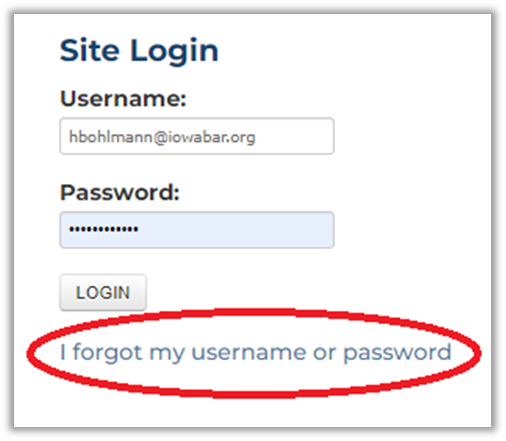
3. Enter your email address to receive an email with instructions for resetting your password. Check spam if you do not receive the email within a few minutes. If you need to update your email on file, call 515-243-3179 or email isba@iowabar.org.
4. Open your email and select Click This Link to Reset Your Login (see screenshot below):

5. You’ll be directed to a page to select your account.
6. Update your new username and password (see screenshot below):
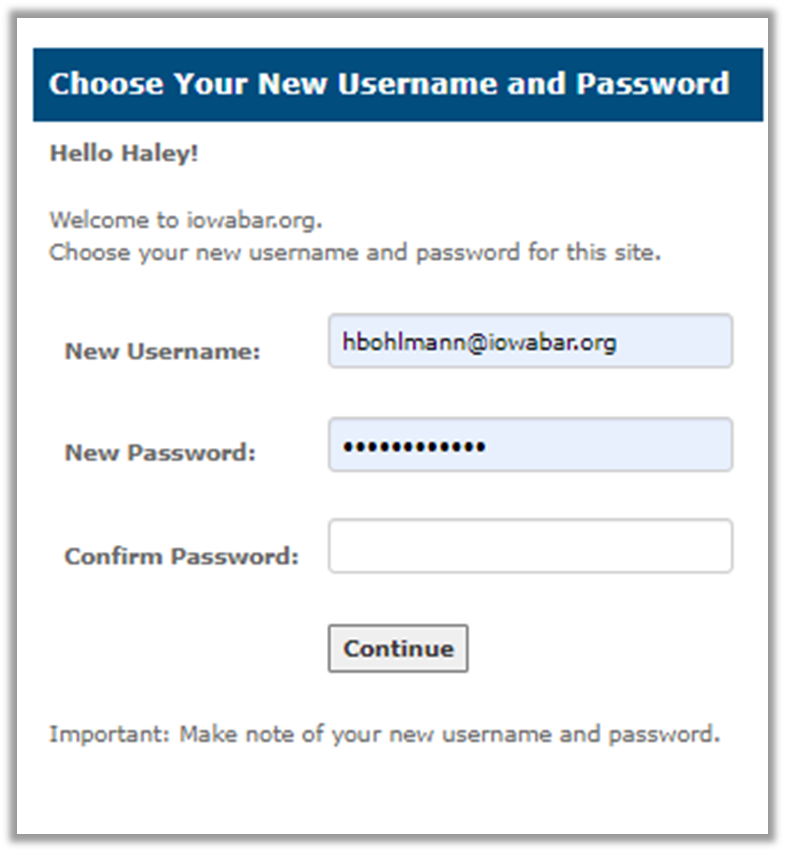
After logging in for the first time, if you need to know your login and password, either click on I forgot my username or password and follow the steps. Contact isba@iowabar.org or 515-697-7870 with any questions.
Q: How do I update my contact information?
A: When visiting the new ISBA website for the first time, members are encouraged to update or verify their contact information by setting up their new ISBA profile. See below for instructions on how to set up your new ISBA profile:
1. Log-in to www.iowabar.org. If you need help setting up your new credentials, please see instructions in our How to login to the new ISBA website document.
2. You’ll be directed to your ISBA member profile when you login to the website from the homepage or by going to the Membership tab and selecting MyISBA in the dropdown menu.
3. Select Update My Profile to review and update your contact information, billing and/or mailing address and other information. Click Save Changes when complete.
4. Select Update My Photo to upload your headshot image. Click Choose File to select your headshot file from your computer and click Upload.
Q: How do I find other members?
A: After logging in to the website, go to the Membership tab and select Member Directory. Type in the name and other information and click the Search button.
Q: How do I add contacts to my contact list?
A: On a member profile, click the  icon located under the email address listed. Open the file and in Outlook, you will click on Save & Close.
Q: What are eCommunities?
A: eCommunities allow you to participate in discussions and share resources with other members within a specific committee or section. This replaces what was formerly the Engage platform.
Q: What communities do I already belong to?
A: Go to your member profile by logging in which will direct you to your MyISBA page or if already logged in to the website, go to the Membership tab and select MyISBA. The box titled My E-Communities is in the second row and second column.
Q: How do I join/subscribe to a community and the affiliated discussion group?
A: If you are currently a member of a committee or section, you will be automatically subscribed to the discussion or eCommunity. If you are looking to join a new section, from the Membership tab you will select Sections and find the group you want to join. From the corresponding section page, scroll to the bottom of the page where you can click on Join our section today!
Q: How can I control the frequency of eCommunity emails I receive?
A: Navigate to the corresponding Committee or Section page starting from the Membership tab. Click on the Lists tab and then go to Settings. Options are to:
- Send All Messages Immediately
- Legacy Digest: one daily message with contributions for that day
- Legacy Digest: one daily message with each contribution as an attachment
- Legacy Index: one daily message with only subject lines
Click the Save Settings button
Q: How do I leave or unsubscribe from a discussion/listserv?
A: Navigate to the corresponding Committee or Section page starting from the Membership tab. Click on the Lists tab and then go to Settings. Check the Unsubscribe box and click the Save Settings button.
Q: How do I start a new discussion thread?
A: Navigate to the corresponding Committee or Section page starting from the Membership tab. Click on the Lists tab and then go to New Post. If this is the first time you are posting in the discussion, you will be prompted to certify your email address. Simply input your email address associated with your ISBA account. You will receive an email from the ISBA with a link to certify your email address that you will click on to complete the certification process.
Q: Can I search for posts across all the eCommunities?
A: Yes. Enter a keyword in the search bar. From the results page, you can filter on ListServs in the far-left navigation box titled Iowabar.org Documents on a desktop computer. You can also search posts in a specific eCommunity by navigating to that particular section or committee page (starting from the Membership tab) and clicking on the Lists tab and then clicking Search Lists.
Q: How do I see a listing of all of the posts to a specific eCommunity?
A: Navigate to the corresponding Committee or Section page starting from the Membership tab. Click on Lists and then click on Threads.
Q: How do I find resources that may have been uploaded by other members?
A: Navigate to the corresponding Committee or Section page starting from the Membership tab. Click on Files.
Q: How do I upload a file?
A: Navigate to the corresponding Committee or Section page starting from the Membership tab. Click on Files then click on Upload Documents. Choose either the button for Upload a Single Document or Upload Multiple Documents and fill in the form on the Add Document page. Click the Save button.


